
Nest on Any Sheet Shape: Import a DXF Outline, Mark Forbidden Zones, Reuse Your Offcuts
Not every workshop cuts full rectangular sheets. You have a round blank waiting on the rack, an offcut from yesterday’s job, a plate with a row of holes already cut, or a spot where the clamps will sit. Until now you had to approximate all of that with a rectangle. NestorCut now nests inside the real outline of the sheet, keeps parts out of the zones you mark, and lets you nest the next job on what the previous one left behind.
What it does
In a project computed on your device (the “This device” option, the default for most users), the new Import a sheet (DXF) button reads the outline of a sheet of any shape: a round blank, an offcut, a plate with notches. Circles, arcs, ellipses, curves (splines) and polylines with arcs are all read. The nesting then stays inside the true outline, not inside a bounding rectangle.
How to use it, in a few steps
- Draw the sheet outline in a DXF file, with a closed shape for the outer edge.
- In the project settings, click Import a sheet (DXF) and drop the file in the window.
- Check the measured size and the usable area. Closed shapes inside the outline appear as inner shapes.
- Click the shapes you want to forbid, then confirm with Use this sheet.
- Add your parts and nest as usual.
Forbidden zones
Every inner closed contour of the drawing can be clicked to become a
forbidden zone: a hole already cut, a defect in the material, a clamp
location. No part is placed there. Nothing is forbidden until you choose.
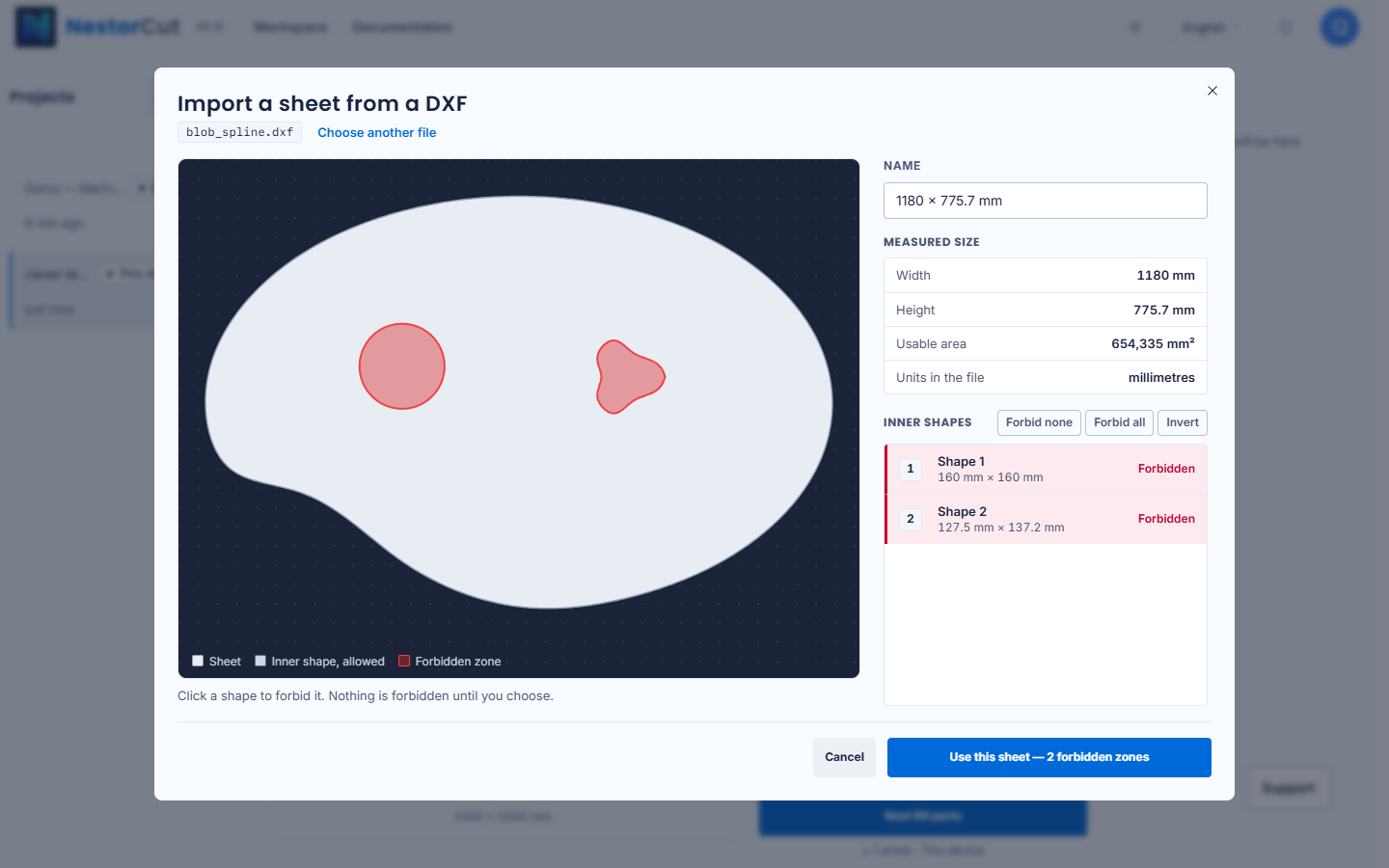
Three shortcuts speed things up: Forbid none, Forbid all and Invert. You can edit the zones later from the sheet’s row, with Edit zones. The limits are 200 zones and 5,000 vertices.
Reusing an offcut
The cut file of a job done on an imported sheet can itself be imported as a sheet for the next job. The parts already cut appear as inner contours; forbid them in one click and the next nesting places nothing on them. You can repeat this from job to job.
What the result and the cut file contain
Before nesting, every sheet type you declared is drawn side by side with its true outline and its forbidden zones in red; during the computation and in the result, the sheets are drawn the same way, including when a job mixes several sheet types. Density is measured on the real usable area of the sheet, meaning the outline minus the forbidden zones. A new check, Forbidden zones clear, joins the existing ones (overlap-free, inside sheet, gap). The rectangular “clean offcut” figure is not shown for these sheets.
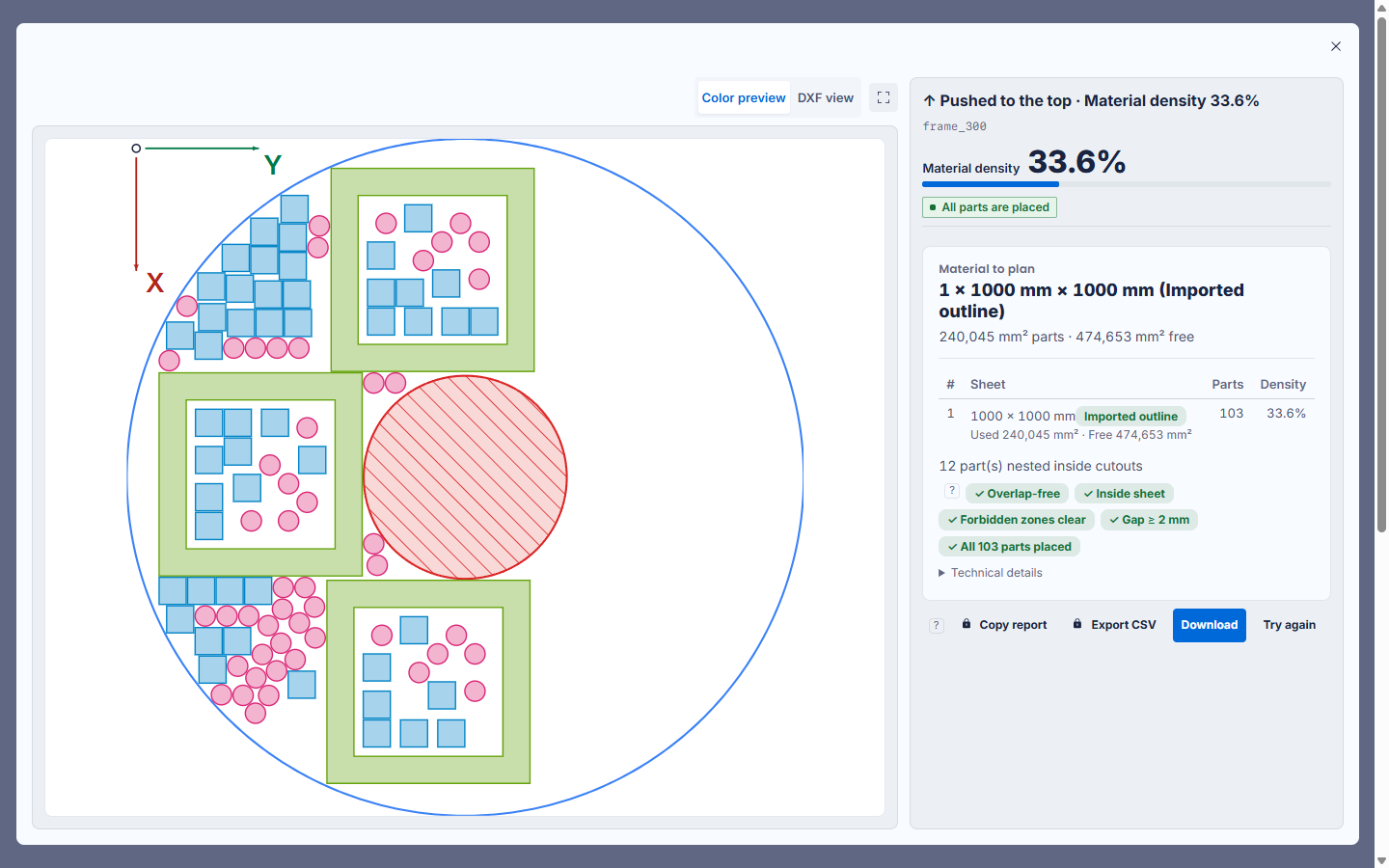
In the cut file (DXF) of an imported sheet:
- the true outline is on layer
BIN_BOUNDARY; - the forbidden zones are on layer
FORBIDDEN_ZONE, so you can exclude them from cutting in your CAM software; - the file’s zero is the bottom-left corner of the rectangle that bounds the sheet;
- the frame around the parts (layer
OUT_SHAPE) is not drawn on these sheets.
Privacy
The shape of your sheet stays in your browser, like the parts of a “This device” project. It is not sent to our servers.
Plans, stated plainly
Free is enough to try it all: import the sheet, mark zones, nest, and see the preview, the checks and the density, with 10 nestings a month. The cut files of these jobs (DXF, ZIP, SheetCam .job) and the DXF view need the Unlimited plan (or Pro). Because reusing an offcut goes through the downloaded cut file, it needs Unlimited too. Jobs on rectangular sheets keep today’s Free rule: the first 2 sheets of each job are downloadable.
Limits, honestly
- The sheet must come from a DXF file. An SVG sheet is refused with a clear message.
- Imported sheets work in projects computed on This device only, not in projects computed on the servers.
One more change in this release
The custom rotations field now accepts any number: typing 12 works.
Want the details? See the page Custom sheet from a DXF. Or try it on your own sheet: open NestorCut.