

What's new
What’s new
Section titled “What’s new”One entry per released version, in workshop language. The current version shows in the app header; the full number in the footer.
V0.9.18
Section titled “V0.9.18”- Unlimited plan granted, or paid in another tab, while the page is open: the page notices when you come back to it, or when you click a locked download. Before, you had to reload it.
- Small sheet: the X/Y marker drawn in a corner now follows the size of the sheet. On a sheet under 700 mm, it could cover parts.
- “This device” projects: the screen now says that parts and results, kept in your browser only, may be lost once the browser is closed, and are erased if you log out. Download what you want to keep.
V0.9.17
Section titled “V0.9.17”- New: sheet imported from a DXF. In a “This device” project, the “Import a sheet (DXF)” button reads the outline of a sheet of any shape: disc, offcut, plate with notches. The nesting stays inside the true outline. Circles, arcs, ellipses, curves and polylines with arcs are read.
- Forbidden zones: in the import window, each inner outline of the drawing can be clicked to become a forbidden zone (hole already cut, defect, clamp position). No part is placed on it. Nothing is forbidden until you choose it, and the zones can be edited afterwards from the sheet’s row.
- Reusing an offcut: the cutting file of an imported sheet can itself be imported as a sheet. The parts already cut appear there as inner outlines and are forbidden with one click; the next nesting places nothing on them.
- Result on an imported sheet: the preview, the thumbnail in the results list and the view during the nesting draw the true outline, with the forbidden zones in red. The density is measured on the real surface of the sheet. A “Forbidden zones clear” check is added to the existing checks, and the rectangular offcut is no longer shown for these sheets.
- Cutting file of an imported sheet: the true outline is on the BIN_BOUNDARY layer and the forbidden zones on the FORBIDDEN_ZONE layer, to be excluded from cutting in your machine software. The zero stays at the bottom-left corner of the rectangle around the sheet. The frame around the parts (OUT_SHAPE layer) is not drawn on these sheets.
- The shape of the sheet stays in your browser, like your parts: it is not sent.
- Free plan: you import the sheet, mark the zones, nest, and see the preview, the checks and the density. The cutting files of these nestings (DXF, ZIP, SheetCam .job) and the DXF view require the Unlimited plan; reusing an offcut goes through the downloaded cutting file, so it needs Unlimited.
- Nesting with two sheet formats: during the nesting, the parts of the larger sheet are no longer cropped on screen, and the final image draws each sheet at its own size.
- “Draw sheet outline on export” option: its help text now says what it does: it adds a frame around the placed parts (OUT_SHAPE layer). The sheet outline is always in the file.
- Rotations, “Other”: you can type a number with several digits, 12 for example. Before, the field disappeared after the first digit.
- Before the nesting, the view draws every declared sheet, each with its shape and at the same scale, instead of the first one only.
- A nearly square sheet, a disc for example, is no longer displayed turned by a quarter turn.
V0.9.16
Section titled “V0.9.16”- Import: a drawing sliver thinner than 0.1 mm (often an outline closed almost onto itself) could be kept as a part. The nesting was then refused as a whole. Such a part is now dropped at import, on the device and on the server alike and whatever its direction in the drawing, with the message “parts too small to cut were dropped”. The other parts nest normally.
- Import on the server: when a file holds no part, the error card now gives the reason (“No closed part found in this file.”).
- “Split into parts”, on a card imported by the server, no longer creates a card for a dropped part.
V0.9.15
Section titled “V0.9.15”- “Nest parts inside holes”, parts with thin walls, letters and plates with many holes: to make a hole usable, the application opens a narrow passage between the hole and the edge of the part. On a thin wall, a letter stroke or between two neighbouring holes, this passage could erase material or cut the part into pieces for the nesting. Another part could then be placed too close, or the nesting was refused by the final check (“measured overlaps”) and refunded. A hole is now opened only if its passage does not damage the part. Otherwise it stays closed during the nesting; small parts can still be put into it at the end.
- Import on the device: in a small drawing, a part whose outline is touched by an open line (bend or engraving line) could disappear. It is now read as on the server.
V0.9.14
Section titled “V0.9.14”- Drawings split into parts, frames with a very thin wall: in a nesting run on the device, a frame whose wall is thinner than about 0.7 mm was not recognised as a part. Its lines travelled with the small part drawn in its middle, and the cut file could contain lines lying over other parts or outside the sheet while the report was green. The frame is now a part of its own, placed and checked like the others.
- Parts with a cutout very close to an edge: on the device, such a part could disappear at import. It is now read as on the server.
- “Nest parts inside holes”: on some parts, the area reserved for the part spilled into one of its cutouts. This spill is fixed.
V0.9.13
Section titled “V0.9.13”- Spacing held on every part: on some parts, the margin computed around the part was slightly smaller than requested, and two parts could end up 1.95 mm apart for 2 mm requested. The requested spacing is now held. On these parts the nesting can take a little longer.
- Spiral parts or parts with very thin strokes: two such parts could be placed against each other without any warning. They now keep the requested spacing, and the application names them so that you can check them before cutting.
- Warning about parts with thin strokes: it had stopped showing in the report since V0.9.9. It shows again, for a nesting on the device as well as on the server, and it names the right files even when parts are nested inside the holes of other parts.
- Choice of the best result: when the final check removes a part from a layout, that layout no longer ranks ahead of a complete layout.
V0.9.12
Section titled “V0.9.12”- Small jobs: a few small parts on a large sheet (a 40 × 100 mm rectangle with the factory settings, for example) could stop the nesting. They now complete.
- Parts that do not fit: a part just too large for the sheet, or right at its exact size, is now refused by name instead of an unexplained stop. The whole nesting is then refused, even if the other parts fit: reduce the spacing, use a larger sheet or remove that part, then start again.
- Failed nesting: when a nesting fails, or the server refuses to start it (another nesting already running, for example), the message now appears on screen instead of staying further down the page, and you can start again right away.
- On-device nesting: the live view is brought on screen as soon as the nesting starts, as it already was on the server.
- Final optimisation step: if it stops, your parts are still delivered, and a note on the card warns that the layout may use more material than usual.
- Email login page: it now opens on login rather than on account creation.
- Clearer result: a single density everywhere (area of the parts over area of the sheets), the “Done” badge only when the nesting is really finished, the sheet length used shown during the search, options named by what they mean, and the “Material to plan” block at the top of the report.
- Report: the two export buttons are called “Copy report” and “Export CSV”, and the per-sheet table can be read on a phone.
- Refusals and failures: a part that is too large is flagged under the nesting button, with the reason; messages coming from the server are translated and name the file.
- Subscription: the window says what each plan unlocks, that a card is required, the amount and the date of the first charge; on the plans page, a free account can start the Unlimited or Pro trial without leaving the page.
- More faithful cutting file: the arcs of old polylines stay arcs (they used to come out as straight segments); blocks with uneven scale, mirrored or repeated (MINSERT) are imported in the right place; in SVG, shapes hidden in
no longer become parts, - Import warnings: the app warns when some lines will not be cut (entities outside any part, paper space, texts and dimensions) and when polyline arcs are nested as straight segments.
- Heavy or damaged files: import is faster, and a corrupted file is cleanly refused or ignored instead of freezing the tab.
- Spacing held on curves: the requested spacing is now respected on the real curves of the cutting file, thanks to a small margin (0.12 mm at most) added for parts with curves. Nothing changes for parts with straight edges. A curved part fitted exactly to the sheet size may be refused: the message states the margin.
- “Reduce spacing to X mm” button: it now applies X, not half of it.
- Project page: the parts and their quantities are shown first, the nesting button stays visible, and after a nesting on the server the central view shows the result.
- Phone and dark theme: the header and the plans table fit on a small screen, and the unreadable texts of the dark theme are fixed.
- What’s new: this page is now shown in all six languages.
- Server sheet files: they are numbered from 1 to N even when a sheet format stays empty.
V0.9.11
Section titled “V0.9.11”- Projects: you can now delete several at once. In the project list, “Select” shows a checkbox next to each project, except the demo project, which can never be deleted, and “Select all” checks every project shown; after a single confirmation, they are deleted one by one and leave the list as they go. A project that cannot be deleted (a nesting is running, for example) stays selected with a message, and the next ones are still deleted. During a search, only the projects shown are deleted.
- Login: creating an account with the address of a Google account is refused with a clear message and a Google login button, instead of a generic error. Logging in with Google using the address of an account with a password is still refused, but a message now says what to do, with a “Forgot password?” link. Resetting your password also confirms your email address.
- Email login page: a wrong password, an account that already exists, a suspended account or too many attempts now show the right message instead of a generic error.
- Project: when you open a project that already contains files, the red message “Select at least one file to nest” no longer shows while it loads.
V0.9.10
Section titled “V0.9.10”- Free plan: nesting is no longer limited to 2 sheets per job. A job nests on as many sheets as it needs and you see the whole result; you download the first 2 sheets of each job (DXF, ZIP, .job), and Unlimited unlocks every sheet (7-day free trial for a first subscription). Before you start a nesting of more than 2 sheets, the Free plan reminds you of this. After payment, you come back to your project; downloads unlock as soon as the payment is confirmed, without reloading the page.
- Parts that do not fit on the declared sheets: the button adds the estimated number of sheets in one go and re-runs the nesting. The same button appears in the window of the refused result; from the home page, “Open the project” takes you back to the settings.
- Subscription: an account whose email address is not yet confirmed now gets a clear message instead of opening the payment; a first payment that did not complete offers to update the payment method.
V0.9.9
Section titled “V0.9.9”- When a DWG file cannot be imported, its file card now gives the reason (AutoCAD version too recent, unreadable file, conversion taking too long…) and what to do next, instead of a simple “Import failed”.
- Results: after 24 hours, a result calculated on our servers now correctly shows as expired, with no download buttons leading nowhere. Downloading the sheets of a large result one by one no longer stalls after about thirty files, and a ZIP archive is never delivered incomplete any more: if something goes wrong, the download fails clearly.
- SheetCam .job files: the enlarged view now fills the full height of the screen.
- Subscription: after a cancellation, the subscription end date is now displayed correctly.
- Security and privacy: you stay signed in as long as you use the application; a session unused for 90 days expires. Deleting an account now erases all its data, including its newsletter subscription, and technical logs no longer contain any email address.
V0.9.8
Section titled “V0.9.8”- The app menu now speaks your language: the Features, How It Works and FAQ links point to the site in your language, a Documentation link appears in the menu and next to Workspace, and the header spans the full width of the screen and adapts to the available space — full menu when everything fits, collapsed menu otherwise — never a label wrapped or off-screen. The email notification promise is removed (it never worked), along with credits and the Pro “denser layouts” claim: Pro delivers the same result sooner, not a different one.
- The application’s technical logs no longer keep the content of exchanges and are erased after 14 days.
- Subscribers can manage their billing (payment card, invoices, cancellation) from their profile; a payment problem is now clearly shown with a button to update the card. The 7-day free trial is offered once per account. Upgrading from Unlimited to Pro now changes the current subscription instead of creating a second one.
- When a nesting fails, the result card now says why. A computation interrupted in the browser no longer leaves the job stuck: it is closed and the nesting is refunded.
- Legal pages corrected: hosting provider (Hetzner, Germany, behind Cloudflare), code licence (PolyForm Noncommercial; parts inherited from nest2d remain MIT), list of sub-processors, fixed revision date, credit packs removed.
V0.9.7
Section titled “V0.9.7”- The browser tab and the public footer now speak the chosen language: the page title follows English, French, Portuguese, Italian, German or Spanish, and the footer links are translated (the legal pages stay in French and English). Portuguese is declared Brazilian, matching the website.
V0.9.6
Section titled “V0.9.6”- NestorCut now speaks Spanish: interface, website and documentation fully translated. Your browser language is detected on your first visit, and the language menu offers Español alongside English, Français, Português, Deutsch and Italiano. Along the way, dates now follow the app language everywhere — Portuguese, Italian and German users were reading English dates.
V0.9.5
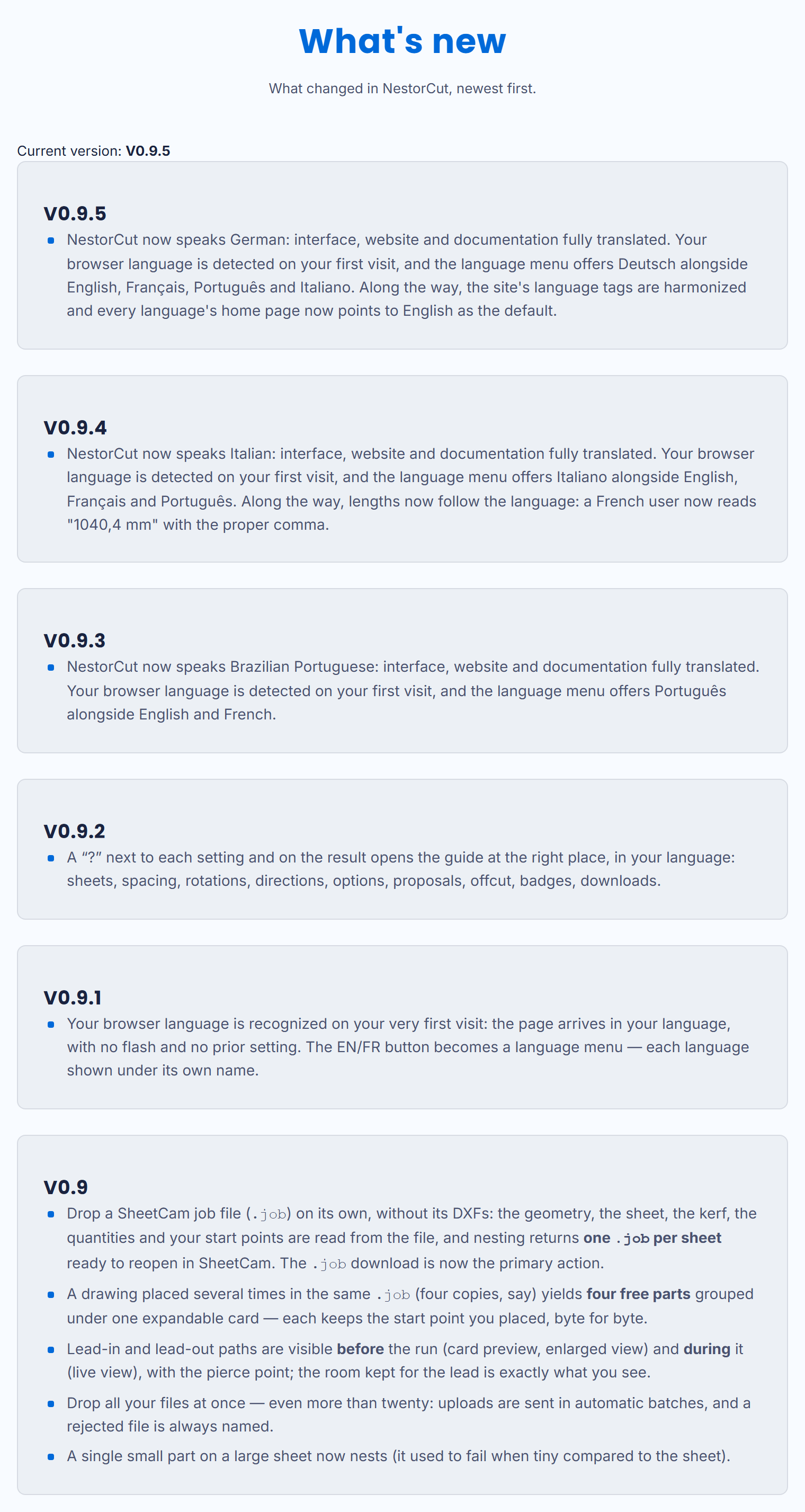
Section titled “V0.9.5”- NestorCut now speaks German: interface, website and documentation fully translated. Your browser language is detected on your first visit, and the language menu offers Deutsch alongside English, Français, Português and Italiano. Along the way, the site’s language tags are harmonized and every language’s home page now points to English as the default.
V0.9.4
Section titled “V0.9.4”- NestorCut now speaks Italian: interface, website and documentation fully translated. Your browser language is detected on your first visit, and the language menu offers Italiano alongside English, Français and Português. Along the way, lengths now follow the language: a French user now reads “1040,4 mm” with the proper comma.
V0.9.3
Section titled “V0.9.3”- NestorCut now speaks Brazilian Portuguese: interface, website and documentation fully translated. Your browser language is detected on your first visit, and the language menu offers Português alongside English and French.
V0.9.2
Section titled “V0.9.2”- A “?” next to each setting and on the result opens the guide at the right place, in your language: sheets, spacing, rotations, directions, options, proposals, offcut, badges, downloads.
V0.9.1
Section titled “V0.9.1”- Your browser language is recognized on your very first visit: the page arrives in your language, with no flash and no prior setting. The EN/FR button becomes a language menu — each language shown under its own name.
- Drop a SheetCam job file (
.job) on its own, without its DXFs: the geometry, the sheet, the kerf, the quantities and your start points are read from the file, and nesting returns one.jobper sheet ready to reopen in SheetCam. The.jobdownload is now the primary action. - A drawing placed several times in the same
.job(four copies, say) yields four free parts grouped under one expandable card — each keeps the start point you placed, byte for byte. - Lead-in and lead-out paths are visible before the run (card preview, enlarged view) and during it (live view), with the pierce point; the room kept for the lead is exactly what you see.
- Drop all your files at once — even more than twenty: uploads are sent in automatic batches, and a rejected file is always named.
- A single small part on a large sheet now nests (it used to fail when tiny compared to the sheet).